

Before You Start
Access to Settings, and what you can do within it, depends on your role:- User - no access to the Settings menu at all.
- Manager - access to Settings, but only the Users page, and scoped to the sites they have access to. A Manager is meant to act as a local site administrator: they can view users in the organization, invite and manage users of an equal or lesser role, and manage site permissions, limited to the sites they themselves can access.
- Administrator - access to Users, Storage Accounts, Detectors, and Transcoders.
- Super Administrator - additional org-wide tools on top of everything above: creating custom dashboards visible to all users, managing feature flags for alpha/beta functionality, exporting and importing models across environments, and managing organizations. This is an internal role reserved for Worlds staff and isn’t covered in depth here.
Users
Lists every user in your organization. To invite someone new, click the Invite User button in the top right, assign them a Manager or User role, then use the toggles to grant permissions to specific sites in your org. Note: Site permissions are sticky. Any new camera or workflow created under a site a user already has access to becomes automatically visible to them. The reverse isn’t true: creating a brand-new site doesn’t automatically grant access to any existing Manager or User, an Administrator has to grant that permission explicitly. To send the invite, enter the person’s email address and click Send Invitation. This creates an editable user record in the list and sends an email with a link for them to set their password and log in. Note: If SSO is enabled through an external identity provider, user access is managed externally, but a user’s record still gets created here automatically the first time they authenticate. They’ll default to the User role with no site permissions, so an Administrator still needs to come in afterward and assign the correct role and permissions. To manage an existing user, use the search bar at the top to find them by email, or click the pencil icon on any editable user record to adjust their role or site permissions.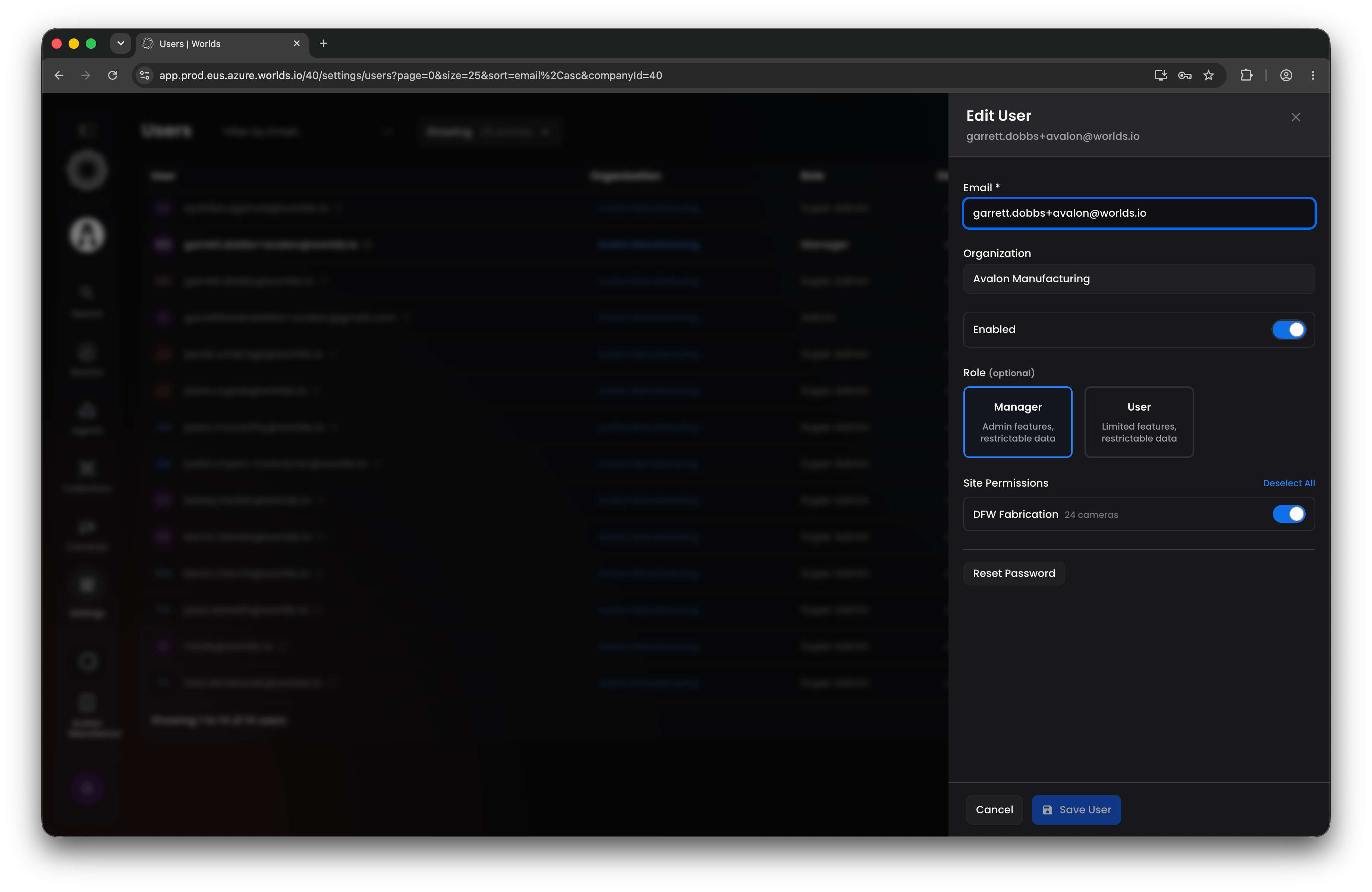
Storage Accounts
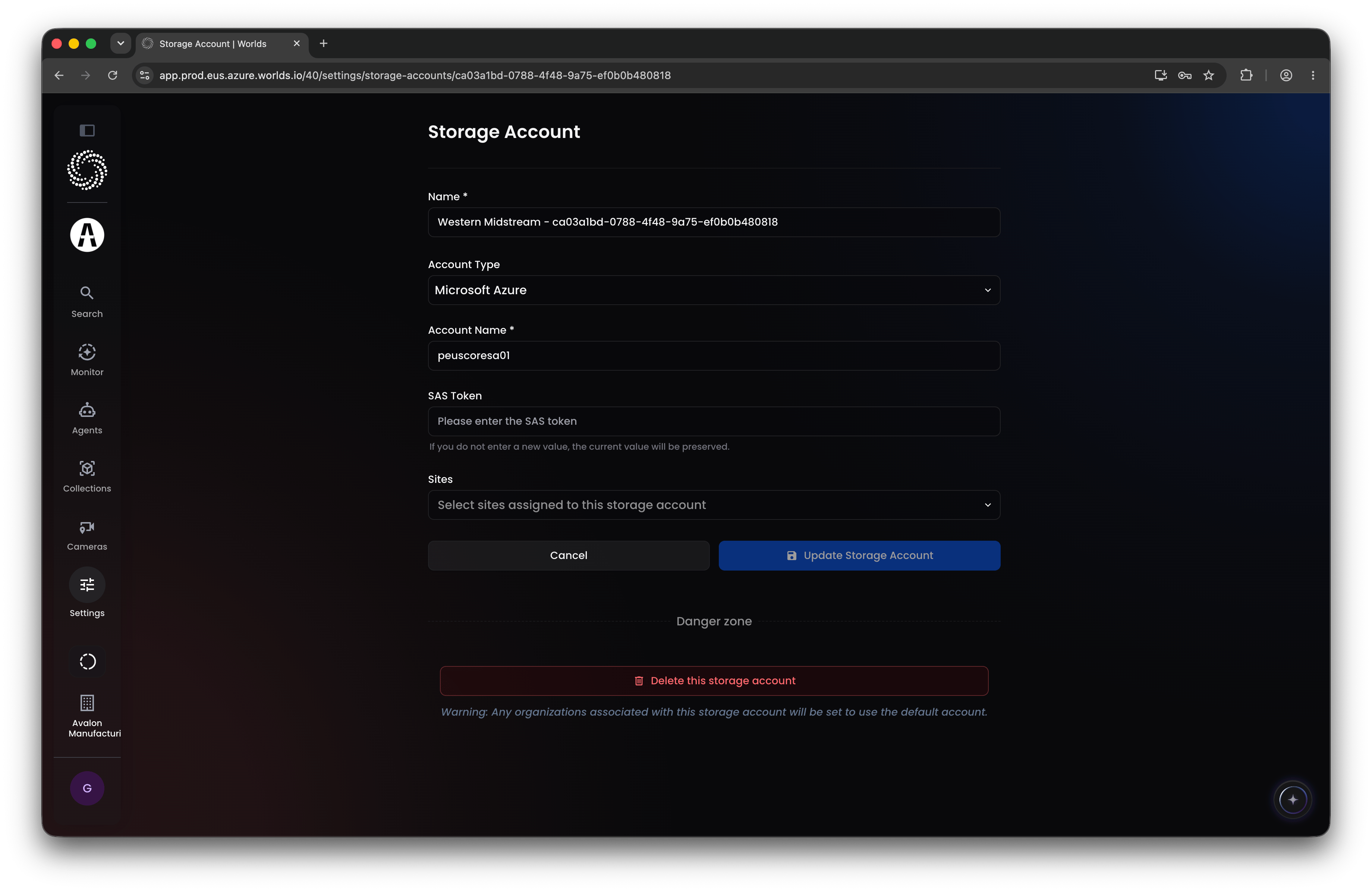
Defines the cloud or physical storage accounts used to store high volumes of raw video data. To create one, click New Storage Account in the top right, name it, and choose an account type:- Amazon S3 - access key, access secret, region, and time zone
- Azure - account name and SAS token only, no region or time zone needed
Transcoders
Cloud transcoding is the default for most Worlds deployments and requires no setup here: when enabled with a valid streaming URL, cameras are automatically provisioned with a cloud transcoder that processes and passes video into Worlds via RTSP stream. Many customers instead run local (edge) transcoding hardware, since it scales better for large volumes of live video and is more secure, letting cameras stream to Worlds without giving IP cameras direct internet connectivity. Any edge transcoders already configured will appear in this list, showing the transcoder’s name, its associated cameras, the site it belongs to, and its last activity. Note: This page is read-only. Physical edge transcoders must be configured outside of Worlds (typically with support from the Worlds team during onboarding, see Setting Up Transcoding with Worlds) before they’ll appear here. To adjust the load on an edge transcoder, edit the individual camera and assign it to a specific edge transcoder, that’s not done from this page.Detectors
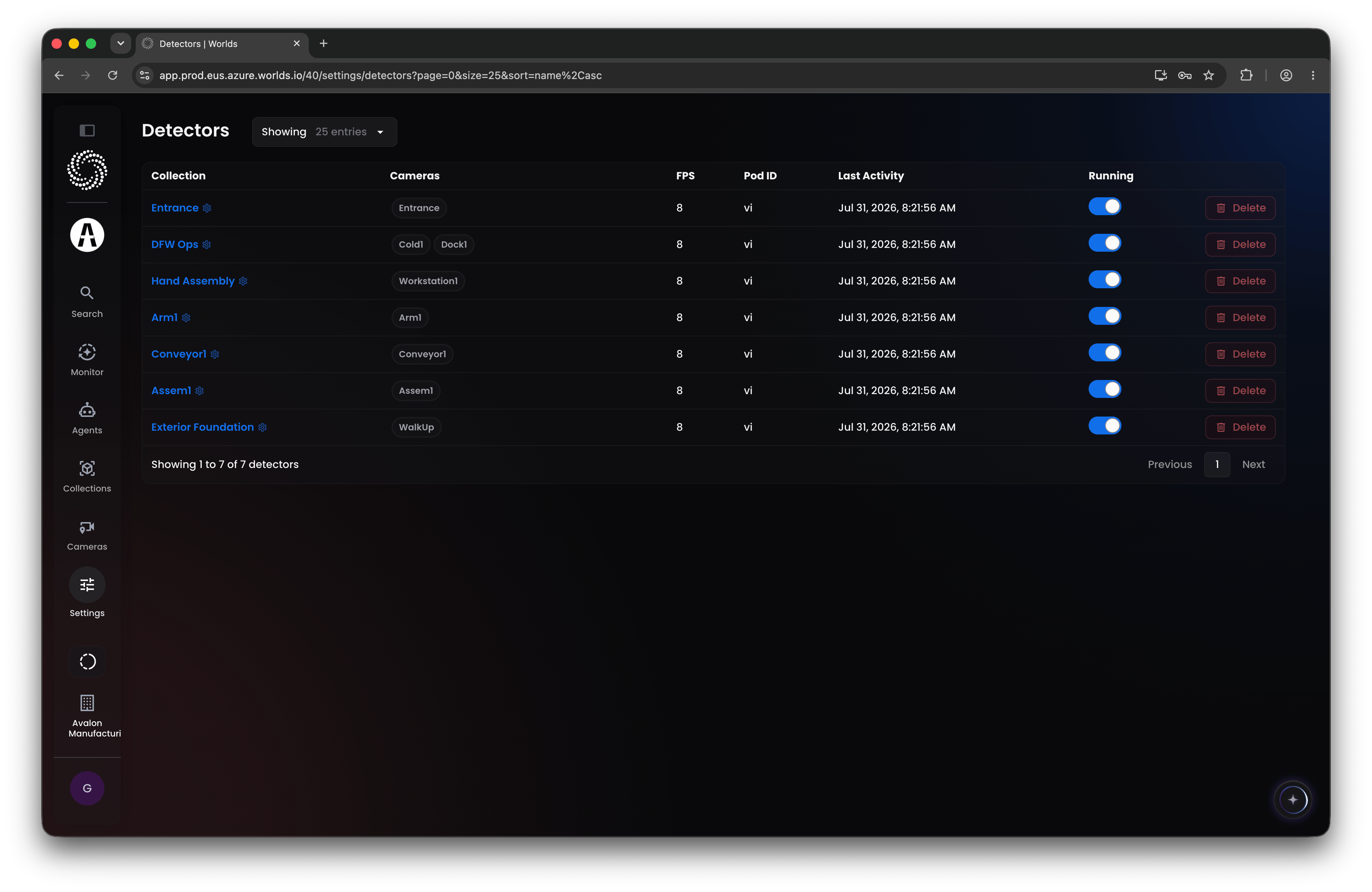
Lists every active model currently running inference and producing detections across your organization. Come here to enable or disable a detector if you need to replace, delete, or modify a running inference service. Editing a detector lets you:- Change which cameras it’s running inference on
- Adjust the model used for inference
- Adjust the target frames-per-second setting
Quick Reference
- Users - Manager and above; invite and manage users, assign roles and site permissions
- Storage Accounts - Administrator and above; define cloud/physical storage, assignable per site
- Transcoders - Administrator and above; read-only list of configured edge transcoders; load balancing happens at the camera level
- Detectors - Administrator and above; enable, disable, or edit running inference models
- Super Administrator - broader org-wide tools (dashboards, feature flags, model import/export, organization management); internal Worlds role, not covered here