

Before You Start
- Naming note: Worlds is partway through migrating from a legacy “event” system to a new Chronicle system, which will eventually distinguish between Activity, Event, and Summary type records. Right now, all captured data is mirrored across both systems, and this page (despite being named Event Activity) is currently displaying Activity-type Chronicles, the same underlying data as the legacy event system. Expect this to evolve as that distinction becomes more visible in the UI.
- Available to every role, but Users and Managers only see data for sites they have permission to.
- Key concept: an “activity” is the output of a workflow. A workflow evaluates Worlds’ inference data, decides what and when to log, then publishes that activity back into Worlds, where it shows up here and elsewhere in Monitoring.
Working the List
Event Activity uses a two-panel layout: activities on the left, and the detail for whatever you’ve selected on the right. You can work down the list without navigating away or losing your place.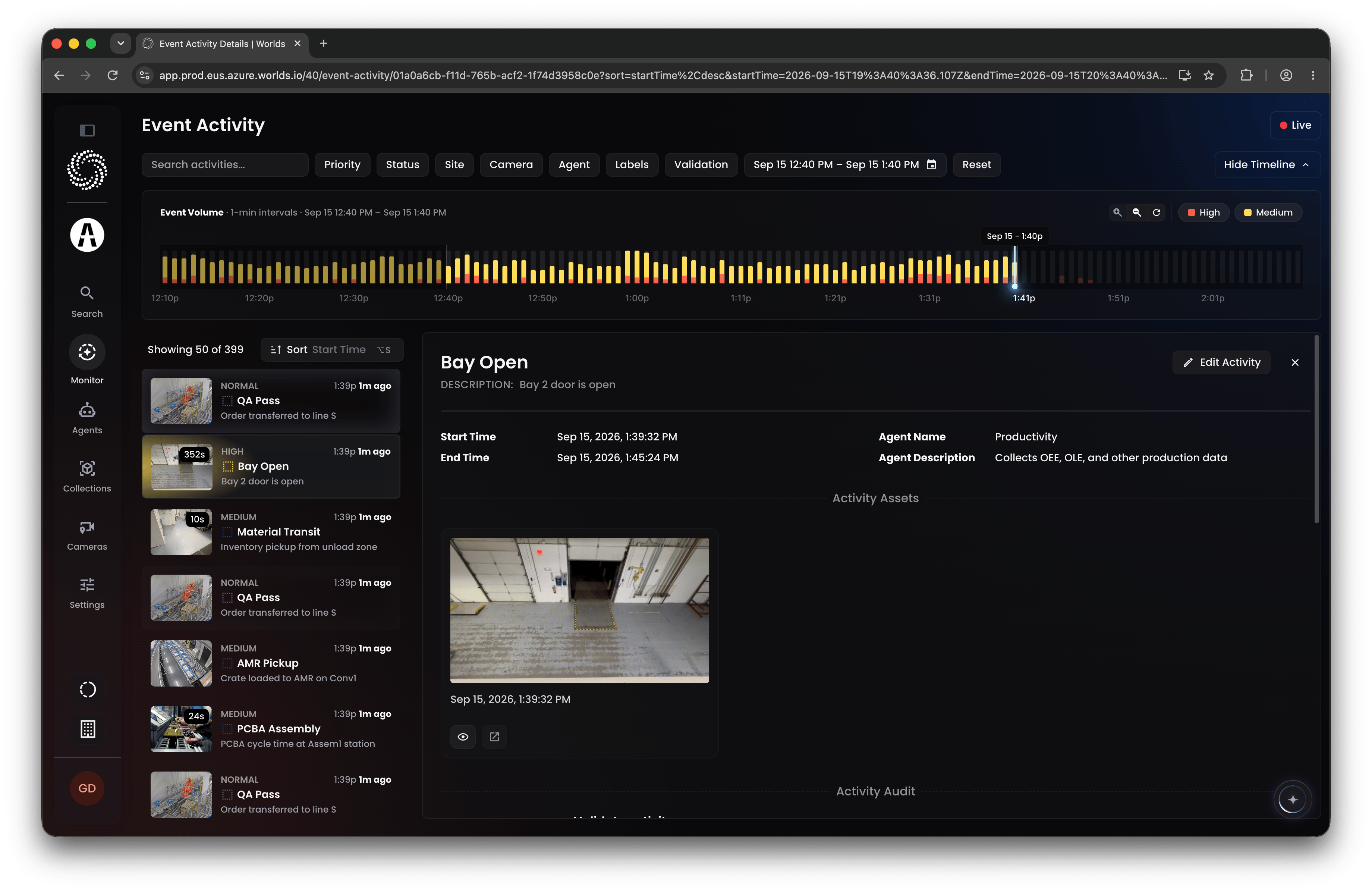
- Live (top right) - when on, new activity appears at the top of the list as it’s published, the same way it does in Overwatch.
- Result count - the list header shows how many records you’re looking at out of the total matching your filters.
- Sort - change which field you’re sorting by and toggle ascending or descending. It defaults to start time descending, newest first.
The Timeline
Above the list, Event Volume plots the activities matching your filters across the selected period, coloured by priority. Hover any bar to read that point in time, and use the zoom controls at the top right to widen or narrow the window. The bucket size adapts to the range you’re viewing, so a one-hour window groups by the minute while a longer range groups more coarsely. The range is no longer capped at 24 hours. Choose any start and end from the date control in the filter bar, and both the timeline and the list follow it. Tip: Hide Timeline collapses the panel when you’d rather give the list and detail the full height of the screen.Filtering
A filter bar runs across the top of the page:- Search activities - free-text search by activity name
- Priority - Critical, High, Medium; anything else shows as No Priority
- Status - the activity’s current state
- Site - which site it’s associated with
- Camera - which camera detected it
- Agent - the agent that produced the activity
- Labels - called “subtype” in the legacy event system
- Validation - whether a human has marked it Valid or Invalid
- Date range - any start and end you choose
Activity Assets
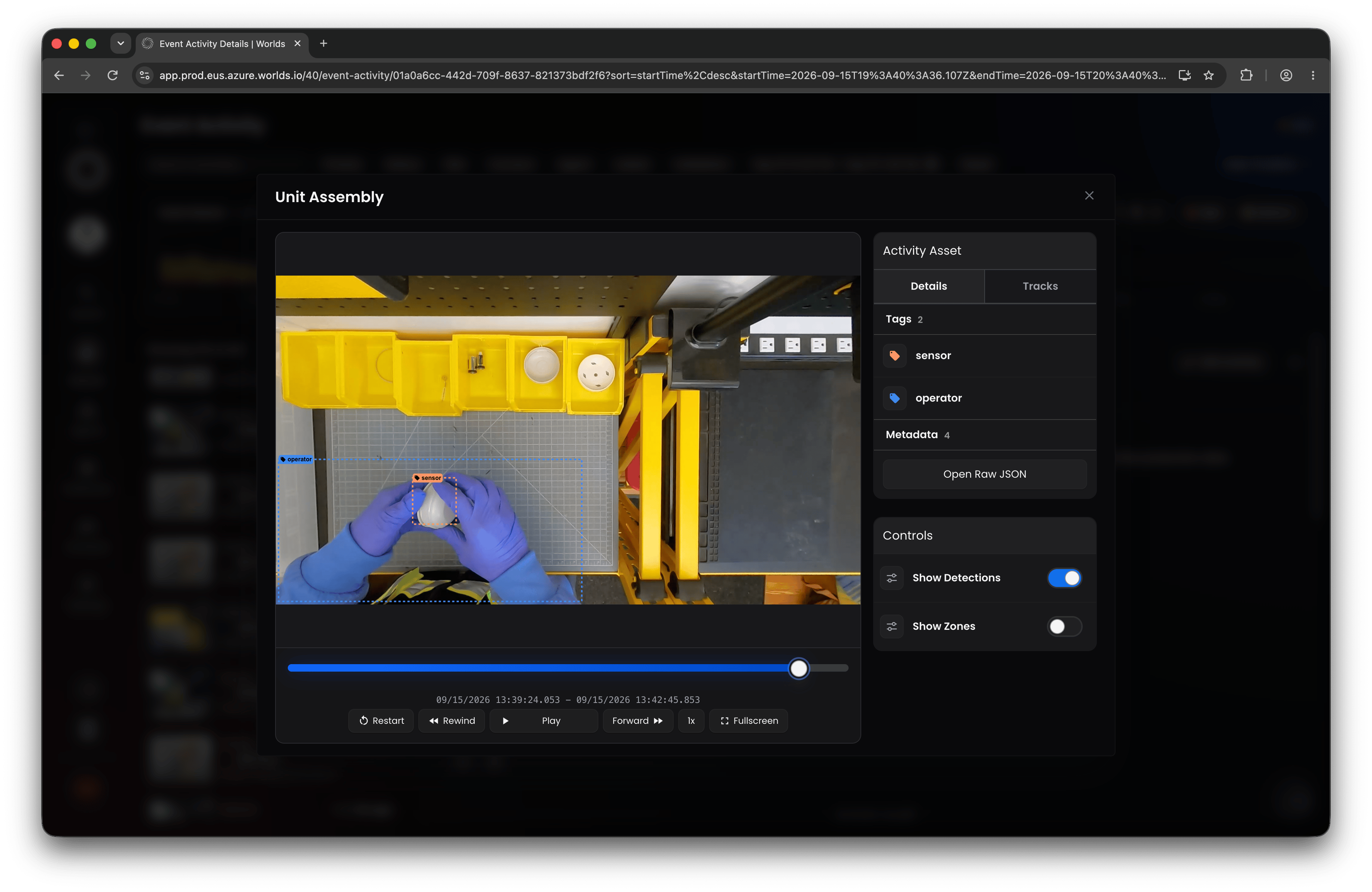
Any still images, GIFs, snapshots, or video clips a workflow created and attached to the activity appear under Activity Assets. Click one to expand it into a player with full playback controls, and a side panel carrying the asset’s Details (its tags and metadata, plus Open Raw JSON) and its Tracks. Two toggles in that panel control what’s drawn over the video:- Show Detections - outline every detected object, labelled with its class.
- Show Zones - outline the zones configured for that camera.
Common Use
Event Activity is mainly a tool for reviewing work in progress: workflows, models, zones, and so on, still being tuned. It makes it easier to validate events, troubleshoot accuracy issues, redraw a camera-based or geofence zone, or adjust workflow logic to improve how well your captured activity matches what’s actually happening.Quick Reference
- Access - every role; Users and Managers limited to sites they have permission to
- Layout - two panels, list on the left and detail on the right
- Live - new activity appears at the top of the list as it’s published
- Timeline - event volume by priority over any date range, with zoom and a collapse control
- Sort - customize the field and direction
- Filters - name, priority, status, site, camera, agent, labels, validation, and date range
- Detail - opens beside the list; activity data, agent, assets, and audit
- Assets - playback with detection and zone overlays, tags, metadata, and raw JSON