

Before You Start
- Iris is still under active development, expect her capabilities to expand and improve with each release.
- Iris respects your access level: whether you’re a User or a Manager, she won’t return information about sites you don’t have permission to access.
- Security note: Iris runs on the best available production LLM and VLM models from various providers, inside a Worlds-built custom harness. She retains memory of your prompts to learn about your business and give more valuable answers over time, but none of that data is shared with any third party for model training, evaluation, or retention of any kind. Everything Iris processes stays inside your Worlds environment, protected by enterprise security controls, and private to your organization.
Step 1: Open Iris
Click the Ask Iris icon in the bottom right, available from anywhere in the product. This opens a chat window with suggested prompts customized to your organization’s context.
Step 2: Ask a Question
Type any question into the chat box, plain language is fine. For example: “Analyze my safety events over the past week and provide recommendations to lower my overall safety risk.” Iris has a suite of skills built to understand the data available in your Worlds environment, and she’ll draw on whichever skill best fits your question.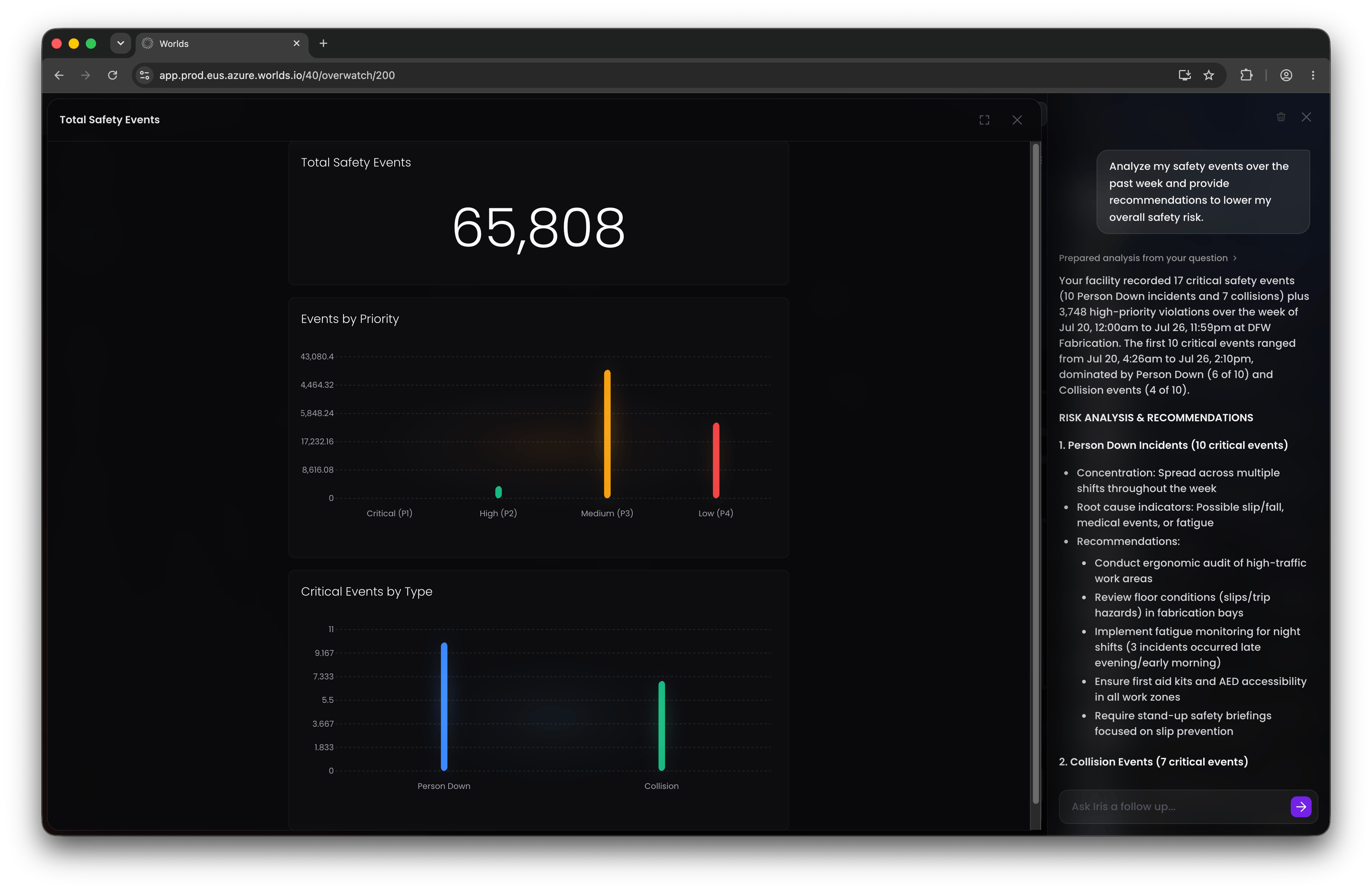
Step 3: Follow Along
While Iris works, you’ll see progress updates as she reasons through the question and decides what actions or data to pull. Once she’s done, her answer appears in the chat panel. Note: Depending on the skill Iris uses to answer, the response format can vary. A question about events, for example, might come back as text plus a chart of event volume over time, a list of matching events, or a map of where they occurred, whatever best fits the question.Step 4: Dig Deeper
Iris maintains session context, so you can keep asking follow-ups to refine results or dig further into whatever she surfaces, rather than starting a new conversation each time. Tip: Iris is also contextually aware of the page you’re on. In the dashboard editor, for example, you can ask her for help configuring a widget and she’ll factor in the page and data you’re currently viewing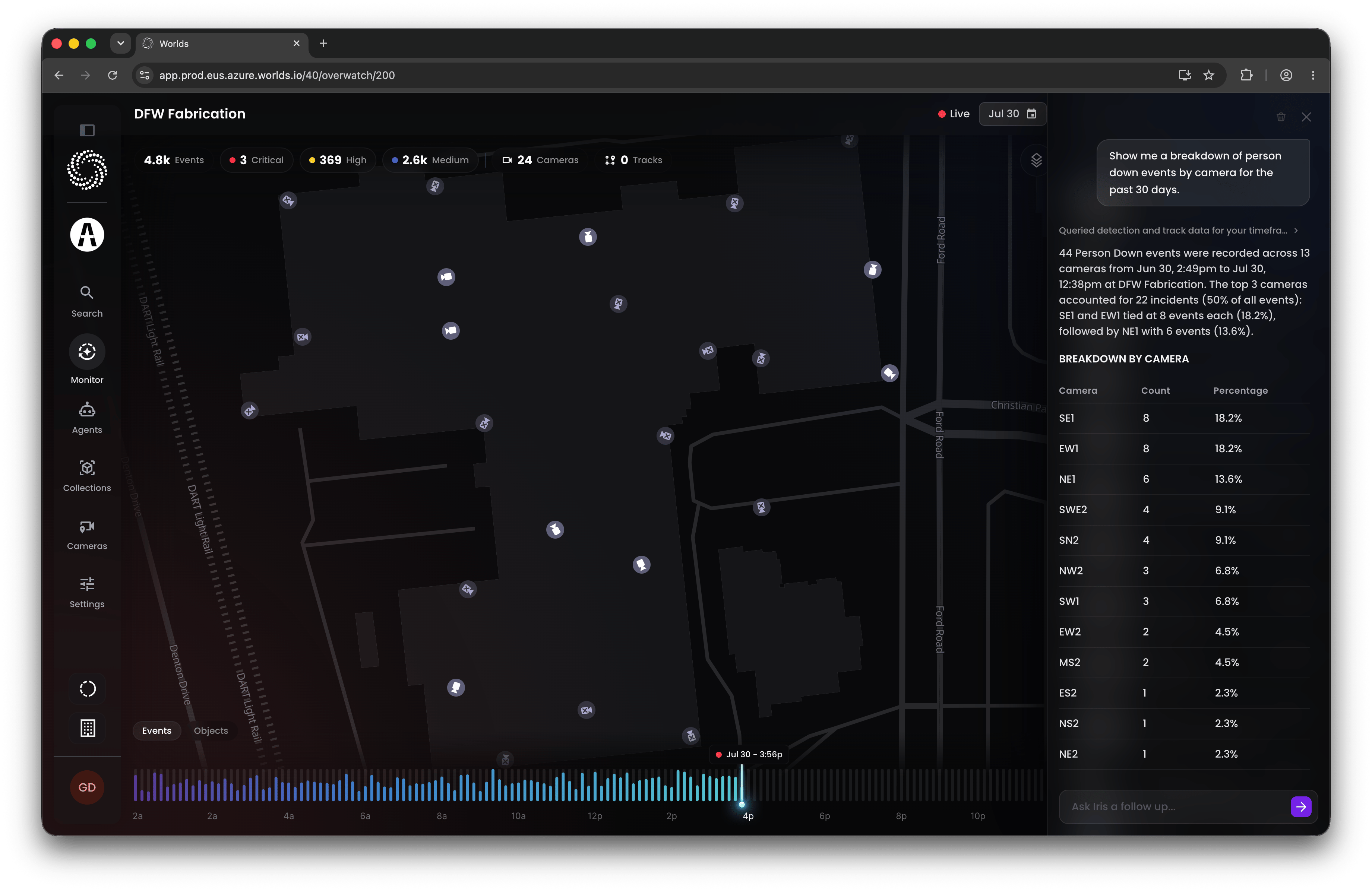
Using Iris: Two Common Workflows
Acting on insights. Ask Iris to surface something you can act on in the real world, a way to reduce risk or improve efficiency, then make that change outside of Worlds. Once it’s in place, come back and ask Iris to help review the impact objectively. Finding opportunities to improve Worlds and teach Iris. Use Iris to explore your data and surface gaps: objects or object types worth tagging into a new model, or workflows worth building or refining so you’re capturing the activity that actually matters to your operations. Iris is meant to be a consultant throughout, not just a one-off Q&A tool. The more you use her, the more useful her suggestions get.Quick Reference
- Access - Ask Iris icon, bottom right, from any screen
- Ask - plain-language questions, informed by your organization’s data and your access level
- Response - text, and sometimes charts, lists, or maps depending on the skill used
- Follow-up - session context is maintained, so keep digging within the same conversation
- Two main uses - act on real-world insights, or find opportunities to improve models and workflows within Worlds