

Before You Start
- Worlds isn’t intended to be a full video management system (VMS), and typically runs alongside an existing VMS rather than replacing it. Live Monitor is a lightweight companion view, though it can double as a simple VMS-style reference if you need one.
Step 1: Open Live Monitor
Clicking Live Monitor in the navigation defaults to opening the first four cameras at your currently selected site.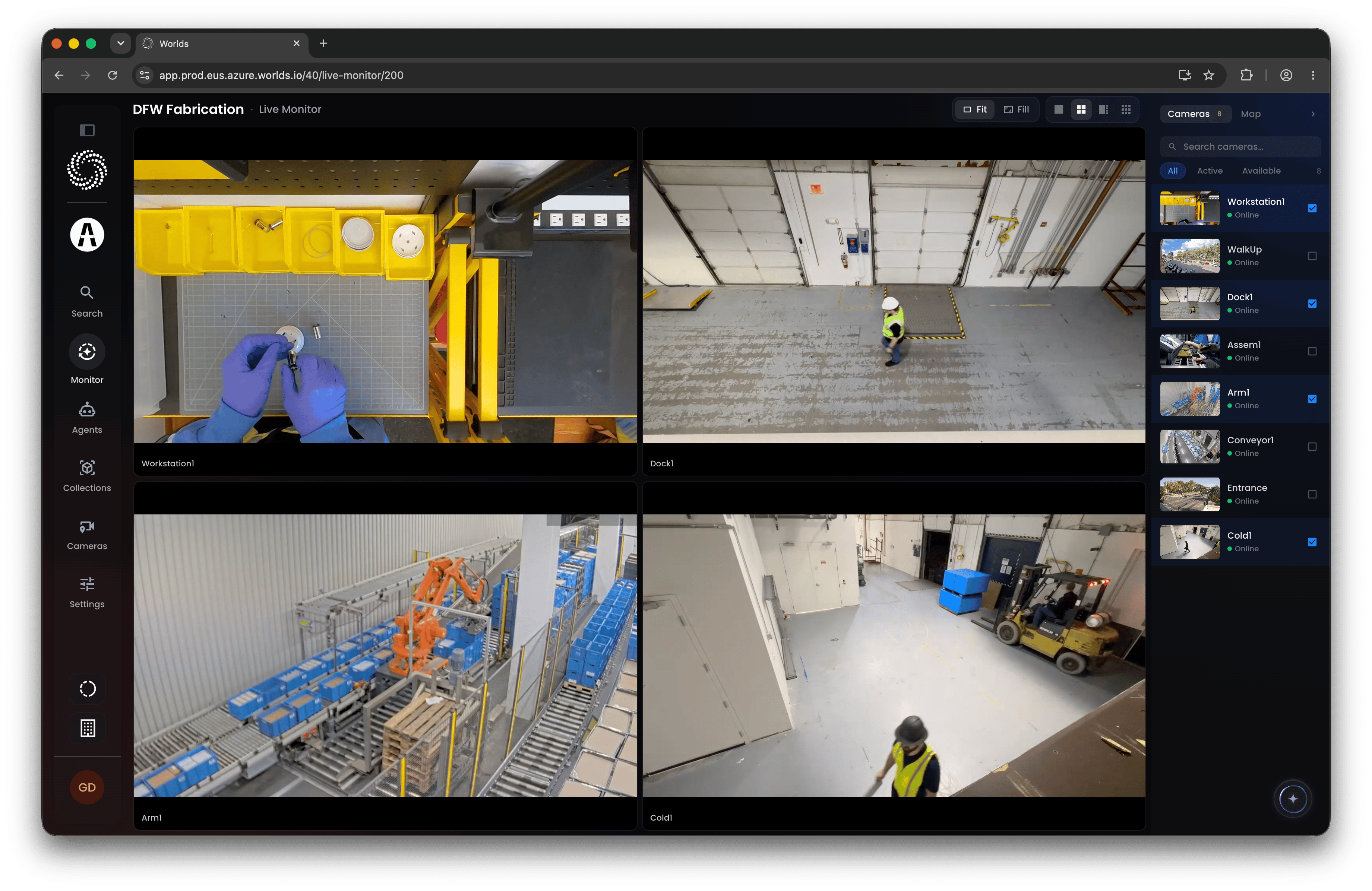
Step 2: Choose a Layout
Two things to set at the top of the page:- Fit or Fill - fit each camera’s full frame into its box, or fill the box entirely with the frame
- Template - choose from a single camera, a 4-camera panel, one large panel with four smaller panels, or a full 9-panel grid

Step 3: Choose Your Cameras
Use the right panel to control which cameras appear in each frame: click the toggle to add a camera, or click an already-enabled camera to remove it. Use the filter menu to narrow the list to all cameras, cameras currently in view, or only cameras available with an enabled live stream. Click Map View for the same panel functionality, but with cameras plotted on a map instead of a list. Cameras need a location configured in Builder to appear here.Step 4: Work with an Active Frame
Hover over any frame with a live stream to reveal a few options:- Click and drag to move a camera to a different panel
- Use the ellipses menu to manage which camera is assigned to that frame, or open the camera’s details
- Click the full screen icon (top right of the frame) to expand that panel
Step 5: Go Full Screen
Click the small arrow in the top right to collapse the camera selection panel and expand your video view to fill the screen.Common Use
Overwatch is the better fit for live monitoring across a large number of cameras. But Live Monitor works well as a lightweight, pseudo-VMS view: build a panel of cameras and leave it running on a screen or TV for a constant, at-a-glance reference of what’s happening across a facility, multiple cameras streaming simultaneously, in real time.Quick Reference
- Default view - first four cameras at your selected site
- Fit/Fill - frame sizing toggle
- Templates - 1, 4, 4+1, or 9-panel layouts
- Camera selection - toggle on/off from the right panel, filterable by view or live-stream status
- Active frame options - drag to reposition, full screen, or manage/open details via the ellipses menu
- Map view - same functionality, camera locations plotted on a map (requires Builder-configured location)
- Best for - lightweight reference and pseudo-VMS use; Overwatch is the primary tool for large-scale live monitoring