> ## Documentation Index
> Fetch the complete documentation index at: https://docs.worlds.io/llms.txt
> Use this file to discover all available pages before exploring further.
# Visual Search
> Search for any object or situation across your cameras using a plain-language description.
Visual search lets you find any object or situation across your live video cameras using a plain-language description, no need to already know which camera or exact time to look at.
## Before You Start
* Every role can use Search, though Manager and User results are limited to cameras at sites they have permission for.
* Historical video is only searchable within your environment's retention policy. If your retention window is 90 days, for example, anything older has expired and won't turn up in results.
 ## Step 1: Access Search
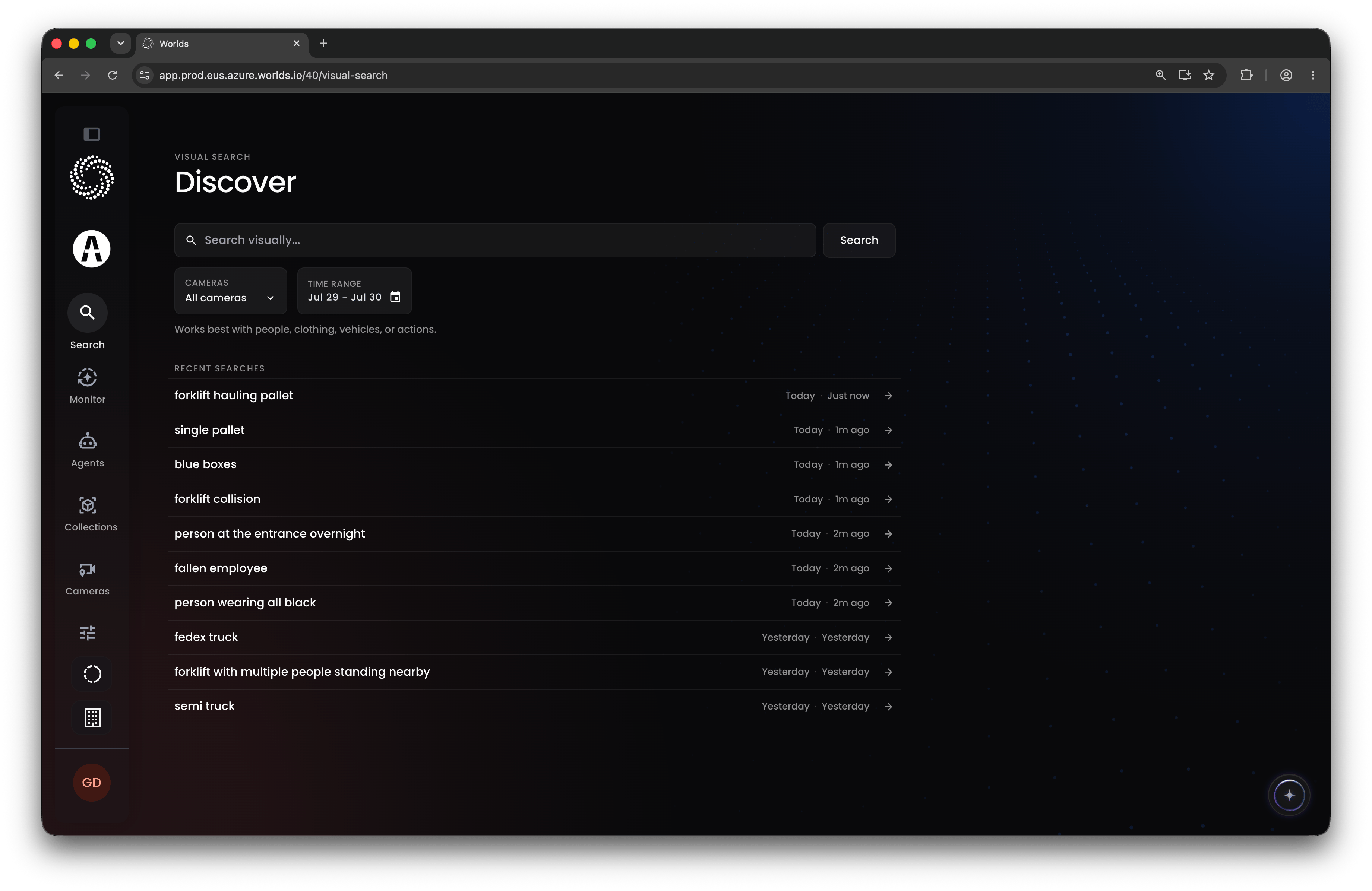
Click the search bar icon at the top of the navigation, available from any screen.
## Step 2: Set Your Filters
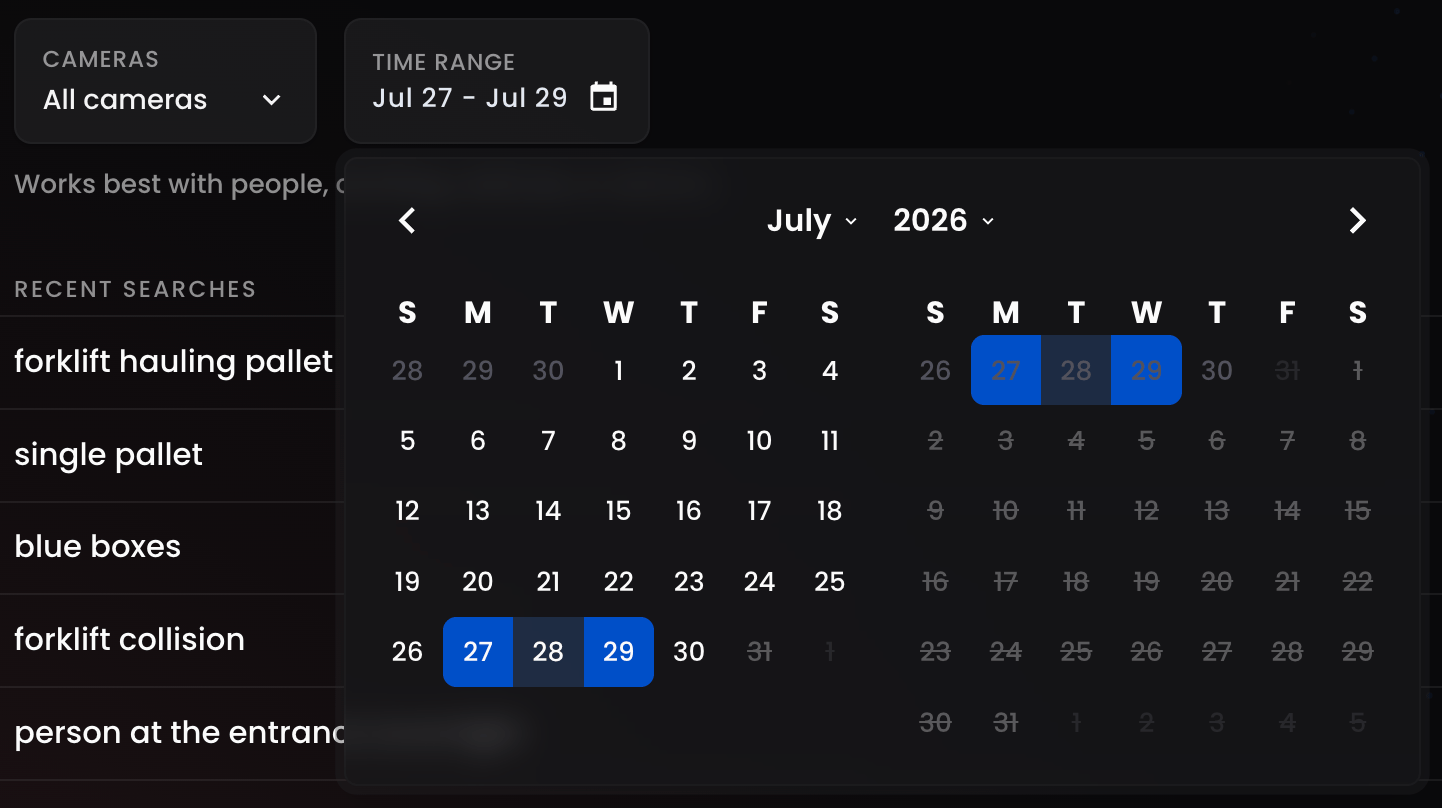
Before running a search, set the two filters underneath the search bar:
* **Cameras** - a multi-select dropdown, defaults to all cameras you have permission for
* **Time Range** - choose a preset relative range, or open the date picker for a custom range
## Step 1: Access Search
Click the search bar icon at the top of the navigation, available from any screen.
## Step 2: Set Your Filters
Before running a search, set the two filters underneath the search bar:
* **Cameras** - a multi-select dropdown, defaults to all cameras you have permission for
* **Time Range** - choose a preset relative range, or open the date picker for a custom range
 ## Step 3: Run a Search
Enter a plain-language description of what you're looking for. Simple object names, "a car," "a forklift," "a person," will always return results. You can also get more specific: "a forklift with multiple people standing nearby."
**Tip:** Experiment with different phrasing. More detailed descriptions help narrow in on exactly what you're after.
Your previous searches are listed further down the page, individual to you. Clicking one reruns that same query, but defaults to the last 24 hours across all cameras rather than whatever filters you originally used or currently have applied.
## Step 4: Review Your Results
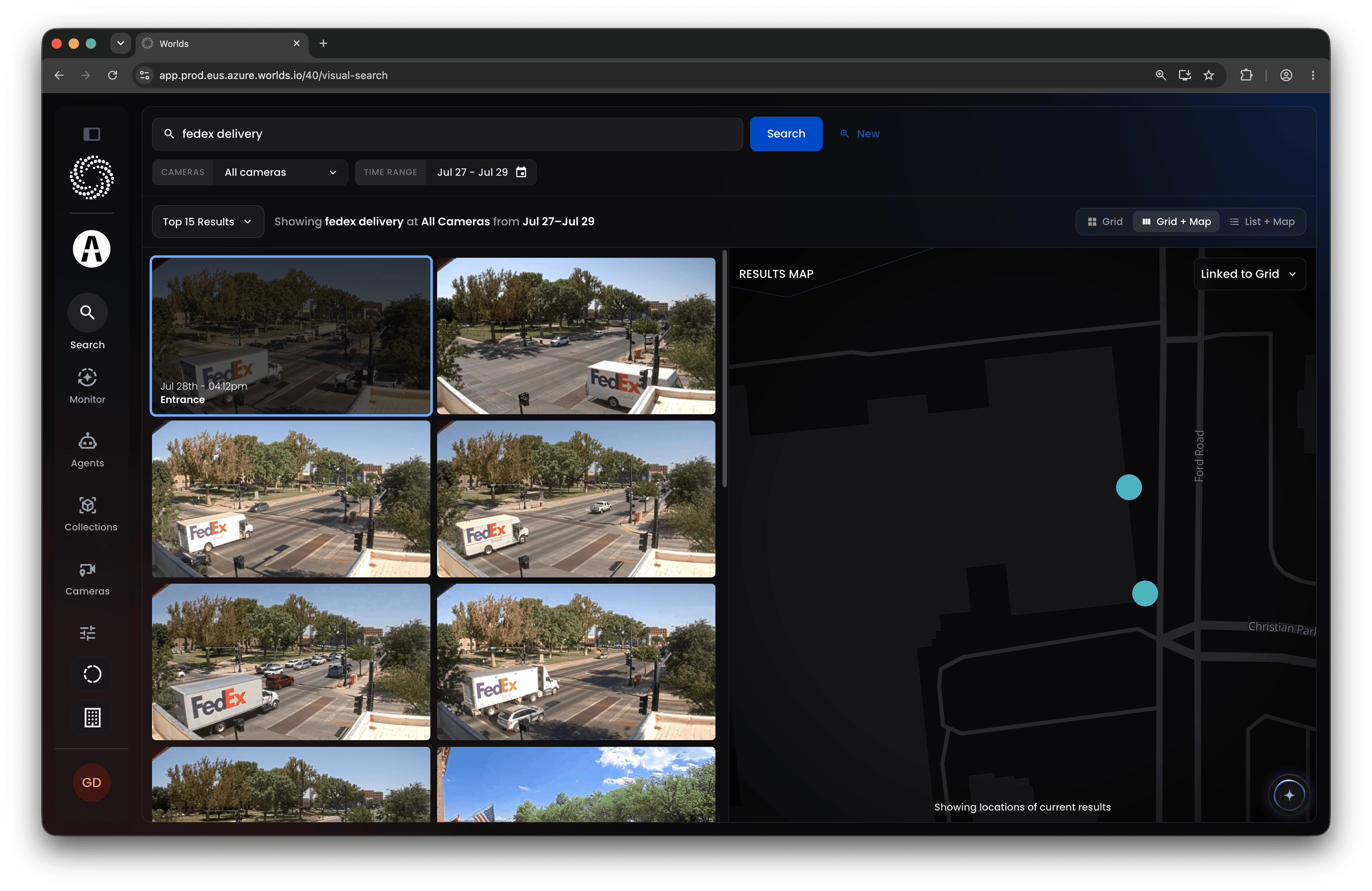
Results appear as thumbnails on the left, ranked by visual similarity to your query, most relevant at the top, less relevant as you scroll or load more. The top 15 display by default; use the results-count dropdown to see more at once, or scroll down and click **Load More**.
**Note:** There's no hard relevancy cutoff. Every search returns ranked results, even weak matches, so don't assume a result is relevant just because it appeared on the list.
In the top right, switch between three views:
* **Grid** - thumbnails only, full grid
* **Grid + Map** - thumbnails alongside a map showing where each result occurred
* **List + Map** - a bigger map with smaller thumbnails, plus the date and time of each result
Hovering over any result in Grid view shows its date, time, and camera.
## Step 3: Run a Search
Enter a plain-language description of what you're looking for. Simple object names, "a car," "a forklift," "a person," will always return results. You can also get more specific: "a forklift with multiple people standing nearby."
**Tip:** Experiment with different phrasing. More detailed descriptions help narrow in on exactly what you're after.
Your previous searches are listed further down the page, individual to you. Clicking one reruns that same query, but defaults to the last 24 hours across all cameras rather than whatever filters you originally used or currently have applied.
## Step 4: Review Your Results
Results appear as thumbnails on the left, ranked by visual similarity to your query, most relevant at the top, less relevant as you scroll or load more. The top 15 display by default; use the results-count dropdown to see more at once, or scroll down and click **Load More**.
**Note:** There's no hard relevancy cutoff. Every search returns ranked results, even weak matches, so don't assume a result is relevant just because it appeared on the list.
In the top right, switch between three views:
* **Grid** - thumbnails only, full grid
* **Grid + Map** - thumbnails alongside a map showing where each result occurred
* **List + Map** - a bigger map with smaller thumbnails, plus the date and time of each result
Hovering over any result in Grid view shows its date, time, and camera.
 ## Step 5: Dig Into a Result
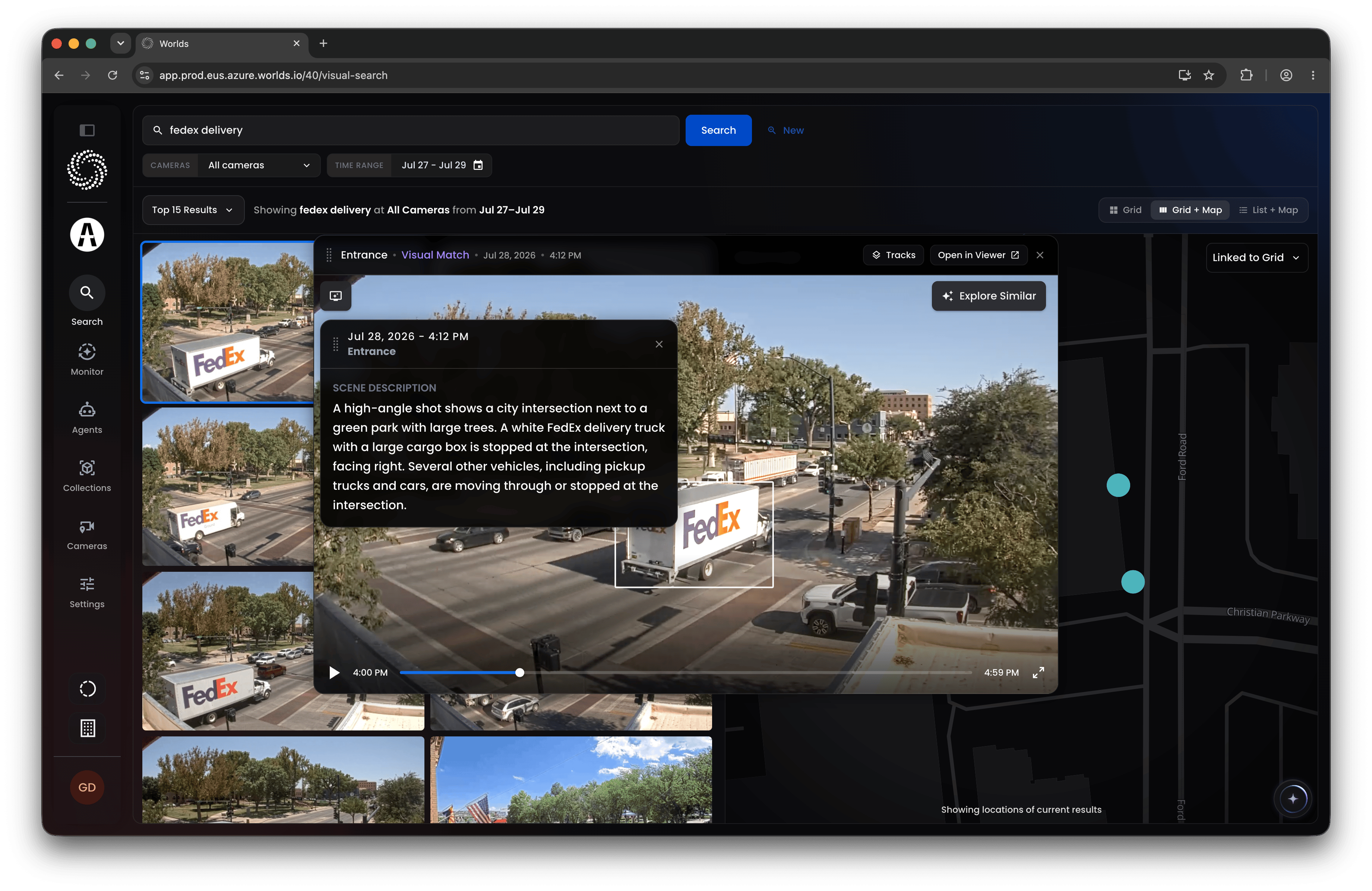
Click any result to open the video player at that exact moment. From there:
* **What AI Sees** (top left) generates a semantic description of the scene
* **Explore Similar** (top right) exposes bounding boxes around detected objects in the video; click one to search for visually similar results to that object, using the same filters you already applied
## Step 5: Dig Into a Result
Click any result to open the video player at that exact moment. From there:
* **What AI Sees** (top left) generates a semantic description of the scene
* **Explore Similar** (top right) exposes bounding boxes around detected objects in the video; click one to search for visually similar results to that object, using the same filters you already applied
 ## Using Search: Two Common Workflows
**Investigation.** Search is a strong tool for reconstructing what happened after a safety or security event. Describe the object or person you're looking for, then use Explore Similar (as long as it's a type your model already detects) to find other instances of it. Refining your description and following the ranked results across time lets you piece together a timeline, like where a specific vehicle or person was seen across a time range.
**Finding training data.** Search is also useful for surfacing examples to feed into a model you're training. Say you've onboarded an outdoor camera with a foundation model that detects general vehicles and pedestrians, but you want it to also catch semi trucks or specific carrier logos. Search "FedEx truck" or "UPS truck" to find timestamped instances where that camera saw one, then open [Collections](/collections-and-models/overview) in a second tab and index short windows around those timestamps to tag the object, the logo, the truck type, into your model. That's a much faster way to find good representative examples than scrubbing through raw footage looking for them.
## Quick Reference
* **Access** - search icon in the top nav, from anywhere
* **Filters** - cameras (multi-select) and time range (preset or custom); limited by your site permissions and your environment's retention policy
* **Query** - plain-language description, simple or detailed
* **Results** - ranked by similarity, no hard relevancy cutoff; three display views (Grid, Grid + Map, List + Map)
* **Video player** - What AI Sees for a scene description, Explore Similar to find visual matches
* **Two main uses** - investigation (reconstruct what happened) and training data discovery (find examples to tag into a model)
## Using Search: Two Common Workflows
**Investigation.** Search is a strong tool for reconstructing what happened after a safety or security event. Describe the object or person you're looking for, then use Explore Similar (as long as it's a type your model already detects) to find other instances of it. Refining your description and following the ranked results across time lets you piece together a timeline, like where a specific vehicle or person was seen across a time range.
**Finding training data.** Search is also useful for surfacing examples to feed into a model you're training. Say you've onboarded an outdoor camera with a foundation model that detects general vehicles and pedestrians, but you want it to also catch semi trucks or specific carrier logos. Search "FedEx truck" or "UPS truck" to find timestamped instances where that camera saw one, then open [Collections](/collections-and-models/overview) in a second tab and index short windows around those timestamps to tag the object, the logo, the truck type, into your model. That's a much faster way to find good representative examples than scrubbing through raw footage looking for them.
## Quick Reference
* **Access** - search icon in the top nav, from anywhere
* **Filters** - cameras (multi-select) and time range (preset or custom); limited by your site permissions and your environment's retention policy
* **Query** - plain-language description, simple or detailed
* **Results** - ranked by similarity, no hard relevancy cutoff; three display views (Grid, Grid + Map, List + Map)
* **Video player** - What AI Sees for a scene description, Explore Similar to find visual matches
* **Two main uses** - investigation (reconstruct what happened) and training data discovery (find examples to tag into a model)