> ## Documentation Index
> Fetch the complete documentation index at: https://docs.worlds.io/llms.txt
> Use this file to discover all available pages before exploring further.
# Navigating Worlds
> Tour the platform's navigation and learn how your role and site permissions affect what you see.
This guide walks through the platform's navigation and explains what each section does, plus how your assigned role and site permissions affect what you see.
## Before You Start
* What you see in Worlds depends on two things: your **role** (User, Manager, or Administrator) and the **sites** you've been granted permission to access. Two people on the same account can have completely different views of the product depending on both.
* Data never crosses site boundaries. If you have access to Site A and a coworker has access to Site B, neither of you will see the other's data, even within the same organization.
## Where You Land
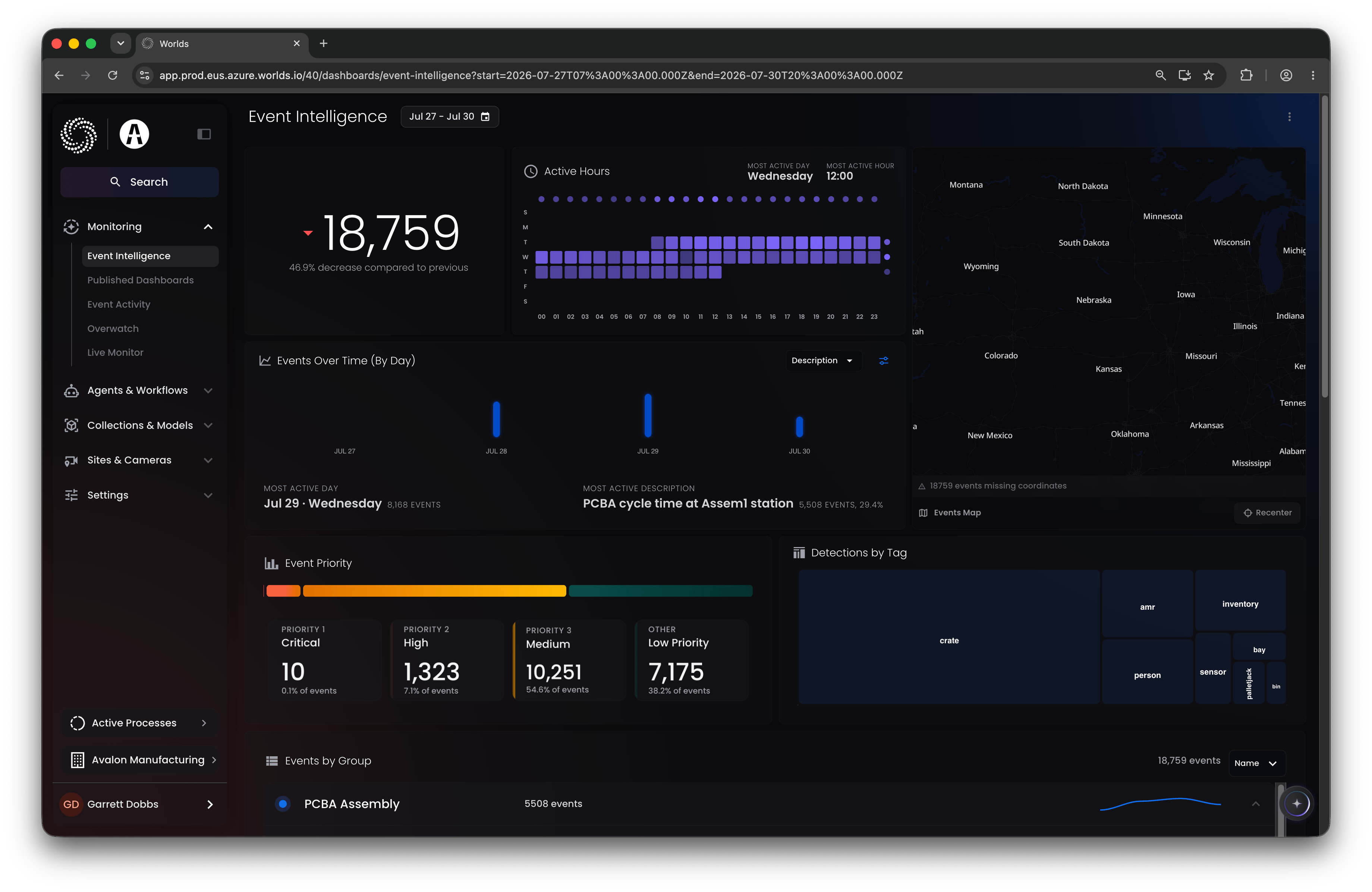
When you log in, you'll land on the [Event Intelligence](/monitoring/event-intelligence) page, under the **Monitoring** section of the navigation. This is the starting point for every user, regardless of role.
 ## Search and Iris
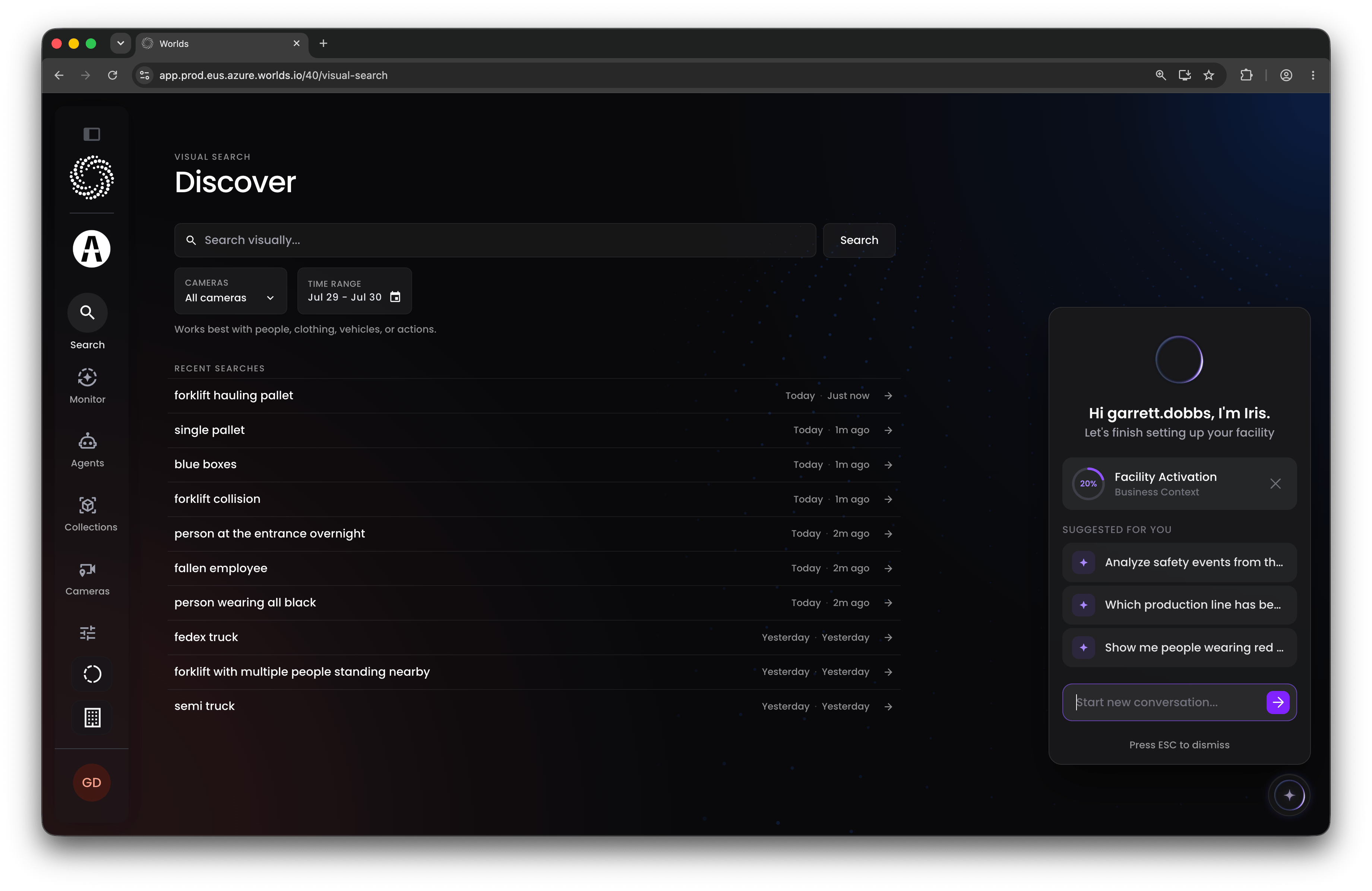
Two tools are available from anywhere in the product, and both respect your site permissions, they'll never surface data or answers outside of what your role and permissions allow:
* [**Search**](/platform-overview/visual-search), at the top of the page, lets you find anything across any camera using text only.
* [**Iris**](/platform-overview/iris), accessible via the "Ask Iris" icon in the bottom right, is Worlds' built-in AI assistant. Ask it a question about your data and it'll do its best to answer.
## Search and Iris
Two tools are available from anywhere in the product, and both respect your site permissions, they'll never surface data or answers outside of what your role and permissions allow:
* [**Search**](/platform-overview/visual-search), at the top of the page, lets you find anything across any camera using text only.
* [**Iris**](/platform-overview/iris), accessible via the "Ask Iris" icon in the bottom right, is Worlds' built-in AI assistant. Ask it a question about your data and it'll do its best to answer.
 ## Monitoring
Monitoring is available to every user, regardless of role. It's primarily read-only: you can review event data and live video, but you won't configure the system generating it here.
* [**Event Intelligence**](/monitoring/event-intelligence) - a dashboard giving an overview of all collected events, with date filters at the top.
* [**Published Dashboards**](/monitoring/published-dashboards) - custom dashboards built by the Worlds team or by users on your account, filtered to your site permissions.
* [**Event Activity**](/monitoring/event-activity) - a list of every distinct event captured by the system, as configured under [Agents & Workflows](/agents-and-workflows/overview).
* [**Overwatch**](/monitoring/overwatch) - Worlds' live monitoring view, showing camera locations and events in real time for a site.
* [**Live Monitor**](/monitoring/live-monitor) - a simplified video management view for pulling up live feeds from any number of cameras in one canvas.
## What Your Role Unlocks
Monitoring is available to everyone, but access beyond it depends on your role.
**User** - Monitoring only. You'll see events and live data for the sites you've been given permission to access, and nothing else.
**Manager** - Monitoring, plus [Agents & Workflows](/agents-and-workflows/overview), [Sites & Cameras](/sites-and-cameras/builder), and [Settings](/settings/overview) (though the pages available within each may be limited). Managers can still be scoped to specific sites, but get more admin functionality within that scope:
* Configure agents to categorize workflows, and edit or create workflows themselves.
* Access Sites & Cameras for the sites they're permitted to, including adding or editing cameras and other site information.
* Manage other Users under Settings (inviting and administering User-role accounts).
**Administrator** - Everything available within a single organization. In addition to everything Managers can do, Administrators can:
* Access [Collections & Models](/collections-and-models/overview). Since a single vision model can run across cameras from multiple sites, this section is limited to Administrators. From here, Administrators can index new video, train and deploy models, and compare model metrics.
* Configure storage accounts per site, and view and manage active detectors and transcoders under Settings.
**Super Administrator** - An internal-only typically reserved for Worlds staff; you won't see this assigned within a customer environment. It's the only role that exists above the organization level, letting Worlds employees work across organizations (typically to build or test something before it reaches a customer's production environment). Customers are limited to Administrator, Manager, and User roles within their own organization.
## Rest of the Navigation
* [**Agents & Workflows**](/agents-and-workflows/overview) - where the business logic that creates and publishes events is configured. Clicking into Workflows takes you to Worlds' built-in n8n instance, where you can see everything currently running and edit or create new workflows.
* [**Collections & Models**](/collections-and-models/overview) - where vision models are trained and deployed for use in your workflows. (Administrators only.)
* **Sites & Cameras** - the [Sites page](/sites-and-cameras/builder) for spatial configuration, and the [Cameras page](/sites-and-cameras/cameras-folders-zones) for managing every camera across your sites.
* [**Settings**](/settings/overview) - user management, technical account objects like storage accounts and transcoders, and custom dashboard publishing.
* **Active Processes** (bottom left) - status of any long-running jobs: data generation, model training, model metrics, or video indexing. Also where you can check on active detectors at any time.
## Your Account Menu
Under your username in the bottom left, you can:
* Access your profile, or switch between light and dark mode.
* Manage your password.
* Generate personal access tokens for API development, scoped to your existing role and site permissions.
* Visit the About page to check your environment's version, or find a link to the Worlds API guide.
See [The User Menu](/platform-overview/user-menu) for the full breakdown of what's available here.
## Quick Reference
* **Monitoring, Search, Iris** - available to everyone; scoped to your assigned sites.
* **Agents & Workflows, Sites & Cameras, partial Settings** - Manager and above.
* **Collections & Models, full Settings** - Administrator and above.
* **Cross-organization access** - Super Administrator only (internal, Worlds staff).
## Monitoring
Monitoring is available to every user, regardless of role. It's primarily read-only: you can review event data and live video, but you won't configure the system generating it here.
* [**Event Intelligence**](/monitoring/event-intelligence) - a dashboard giving an overview of all collected events, with date filters at the top.
* [**Published Dashboards**](/monitoring/published-dashboards) - custom dashboards built by the Worlds team or by users on your account, filtered to your site permissions.
* [**Event Activity**](/monitoring/event-activity) - a list of every distinct event captured by the system, as configured under [Agents & Workflows](/agents-and-workflows/overview).
* [**Overwatch**](/monitoring/overwatch) - Worlds' live monitoring view, showing camera locations and events in real time for a site.
* [**Live Monitor**](/monitoring/live-monitor) - a simplified video management view for pulling up live feeds from any number of cameras in one canvas.
## What Your Role Unlocks
Monitoring is available to everyone, but access beyond it depends on your role.
**User** - Monitoring only. You'll see events and live data for the sites you've been given permission to access, and nothing else.
**Manager** - Monitoring, plus [Agents & Workflows](/agents-and-workflows/overview), [Sites & Cameras](/sites-and-cameras/builder), and [Settings](/settings/overview) (though the pages available within each may be limited). Managers can still be scoped to specific sites, but get more admin functionality within that scope:
* Configure agents to categorize workflows, and edit or create workflows themselves.
* Access Sites & Cameras for the sites they're permitted to, including adding or editing cameras and other site information.
* Manage other Users under Settings (inviting and administering User-role accounts).
**Administrator** - Everything available within a single organization. In addition to everything Managers can do, Administrators can:
* Access [Collections & Models](/collections-and-models/overview). Since a single vision model can run across cameras from multiple sites, this section is limited to Administrators. From here, Administrators can index new video, train and deploy models, and compare model metrics.
* Configure storage accounts per site, and view and manage active detectors and transcoders under Settings.
**Super Administrator** - An internal-only typically reserved for Worlds staff; you won't see this assigned within a customer environment. It's the only role that exists above the organization level, letting Worlds employees work across organizations (typically to build or test something before it reaches a customer's production environment). Customers are limited to Administrator, Manager, and User roles within their own organization.
## Rest of the Navigation
* [**Agents & Workflows**](/agents-and-workflows/overview) - where the business logic that creates and publishes events is configured. Clicking into Workflows takes you to Worlds' built-in n8n instance, where you can see everything currently running and edit or create new workflows.
* [**Collections & Models**](/collections-and-models/overview) - where vision models are trained and deployed for use in your workflows. (Administrators only.)
* **Sites & Cameras** - the [Sites page](/sites-and-cameras/builder) for spatial configuration, and the [Cameras page](/sites-and-cameras/cameras-folders-zones) for managing every camera across your sites.
* [**Settings**](/settings/overview) - user management, technical account objects like storage accounts and transcoders, and custom dashboard publishing.
* **Active Processes** (bottom left) - status of any long-running jobs: data generation, model training, model metrics, or video indexing. Also where you can check on active detectors at any time.
## Your Account Menu
Under your username in the bottom left, you can:
* Access your profile, or switch between light and dark mode.
* Manage your password.
* Generate personal access tokens for API development, scoped to your existing role and site permissions.
* Visit the About page to check your environment's version, or find a link to the Worlds API guide.
See [The User Menu](/platform-overview/user-menu) for the full breakdown of what's available here.
## Quick Reference
* **Monitoring, Search, Iris** - available to everyone; scoped to your assigned sites.
* **Agents & Workflows, Sites & Cameras, partial Settings** - Manager and above.
* **Collections & Models, full Settings** - Administrator and above.
* **Cross-organization access** - Super Administrator only (internal, Worlds staff).